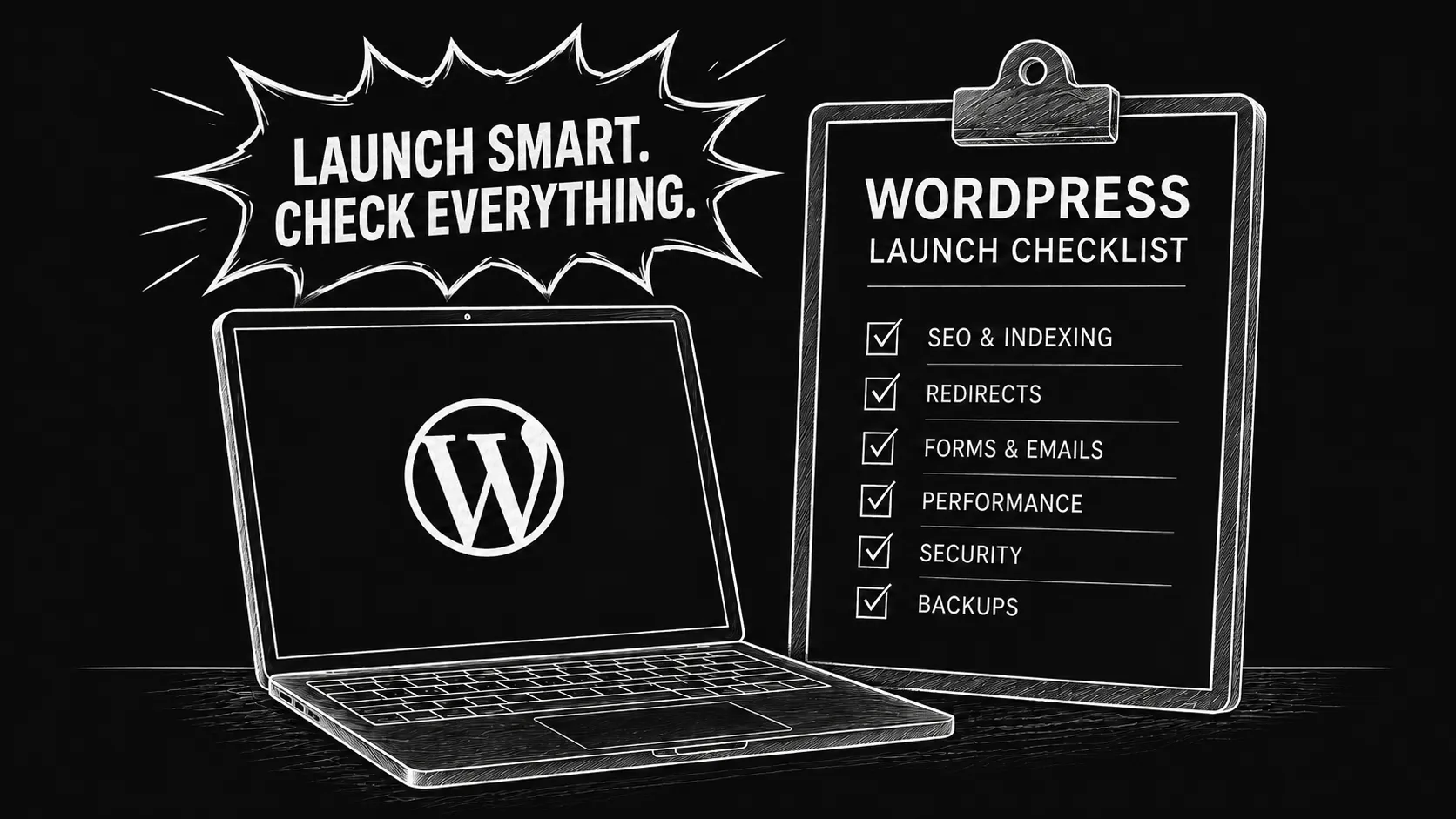
A website can look finished and still not be ready to launch.
The design might be complete, the text is in place and everything looks good on your laptop. But there is another part of a website launch that is much easier to forget: redirects, forms, SEO settings, backups, performance, security, mobile testing and all the small technical details behind the visible website.
For me, a website is not finished simply because it looks finished. Before I hand over a WordPress website or relaunch, these are the things I normally check.
1. Clean up before you launch
Development websites collect a surprising amount of temporary content. Before launch, I go through the site once more and remove anything that should not be there.
- Test pages and dummy posts
- Placeholder images and text
- Temporary users
- Old drafts
- Unused plugins
- Development notices
- Staging links
- Pages that were temporarily hidden from search engines
One particularly important check is whether the website was set to discourage search engines while it was being built. That setting is useful on a staging website, but not when the finished website goes live.
Make sure the finished website can actually be indexed.
A beautiful website that is still telling Google not to index it is not really launched. I always check indexing separately from the design.
2. Redirect old URLs after a relaunch
If you are replacing an existing website, one of the first technical jobs is checking what happened to the old URLs.
If an old page has moved to a new URL, it should normally redirect to the relevant new page using a permanent 301 redirect.
This matters because those old URLs may already appear in Google, have backlinks, bookmarks or existing traffic.
For smaller WordPress websites, one useful option is 301 Redirects.
Whatever method you use, test the redirects afterwards. Creating the redirect is only half the job.
3. Check SEO, indexing and the sitemap
Installing an SEO plugin does not automatically mean the SEO is done.
I normally check:
- The XML sitemap
- Which pages are indexable
- Page titles
- Meta descriptions
- Canonical URLs where relevant
- robots.txt
- Google Search Console
For WordPress, an SEO plugin such as Yoast SEO can take care of much of the technical setup.
The important pages should also have their own meaningful titles and descriptions. A service page simply called Services is not telling Google or the visitor very much.
Do not assume the SEO is set up just because the plugin is installed.
Open the sitemap, check the pages and see what the website is actually telling Google.
If you already have a website and are not sure where the technical or SEO problems are, my free Website Audit can give you a useful starting point before you change anything.
4. Test every form and email properly
A contact form looking correct does not mean it works.
I submit every important form myself.
- Contact forms
- Quote requests
- Newsletter forms
- Booking forms
- Registration forms
- File uploads
- Password reset
- WooCommerce checkout
I also check what happens afterwards. Did the administrator receive the message? Did the visitor get a confirmation? Did it land in spam? Does validation work?
A form is not tested until the message arrives.
For me, a contact form is only finished once I know the complete route from visitor → website → correct inbox is working.
5. Test the website on more than your own computer
I always check desktop, tablet and mobile separately.
The areas most likely to cause problems are usually the interactive parts:
- Navigation menus
- Dropdowns
- Forms
- Sliders
- Popups
- Cookie banners
- Sticky elements
- Custom JavaScript
I also check the main browsers, particularly Chrome, Safari, Firefox and Edge.
If you need access to devices or browser combinations you do not own, BrowserStack is useful for this.
6. Test the real website speed
I prefer doing the final performance check once the website is running on its real server. That is the environment the visitor will actually use.
A good starting point is Google PageSpeed Insights.
I do not think every website needs to chase a perfect 100 score. I am more interested in finding obvious things that are making the site unnecessarily slow.
- Images that are far too large
- Unnecessary scripts
- Too many third-party services
- Poor caching
- Slow hosting
- Plugins doing more work than necessary
These are often the easiest improvements and usually where I start.
Find out where the obvious problems are first.
My Website Audit checks some of the main SEO, performance, accessibility and technical areas and gives you a clearer idea of where to start.
7. Set up caching — but do not overdo it
Caching can make a noticeable difference to WordPress performance because pages do not need to be rebuilt from scratch for every visitor.
One caching plugin I often use is WP Rocket.
It can handle page caching and provides additional options for things such as lazy loading and file optimisation.
Some of the more aggressive JavaScript options should be tested rather than simply switched on. A speed improvement is not useful if the menu or slider stops working afterwards.
Do not stack caching plugins.
Your host may already provide caching as well. Two caching plugins do not normally mean twice the performance. They can simply make problems harder to diagnose.
8. Optimise your images
Images are one of the easiest ways to make an otherwise good website unnecessarily heavy.
A photograph that is 5000 pixels wide does not need to be downloaded just to appear inside a small content card.
I normally check dimensions, compression and the format of important website images.
For WordPress, Imagify is one option for optimising images and reducing unnecessary file size.
9. Set up Search Console and analytics
Once a website is live, I want to know two things:
Can Google find it?
And:
Are people actually using it?
Google Search Console helps with the first. Analytics can help with the second.
For a standard WordPress setup, Site Kit by Google can connect services such as Search Console and Google Analytics with WordPress.
I still recommend looking directly inside Search Console as well. It is one of the first places I look after a new website or relaunch goes live.
10. Do a basic accessibility check
Accessibility is another thing that should be considered before launch rather than becoming a job for some distant future date.
At minimum, I check:
- Heading structure
- Useful alt text where appropriate
- Keyboard navigation
- Form labels
- Visible focus states
- Colour contrast
- Clear links and buttons
One very simple test is to try moving through the website using the keyboard instead of the mouse. Problems become obvious surprisingly quickly.
11. Set up backups somewhere sensible
Every website should have backups.
Many hosting companies already create their own backups, which is useful, but I prefer not to make the entire backup strategy dependent on one provider.
One WordPress plugin I regularly use is UpdraftPlus.
It can schedule backups and store them remotely using services such as Google Drive, Dropbox or Amazon S3.
Keep a backup somewhere other than the website server.
If your only backup lives on the same server as your website, you still have one fairly large point of failure.
12. Check security, WordPress and PHP
WordPress security is not solved by installing one security plugin.
I normally check:
- WordPress core
- Plugins
- The active theme
- PHP version
- Administrator accounts
- Unused users
- Unused plugins
- Strong passwords
- Backups
For websites where I want an additional WordPress security layer, Wordfence is one option I use.
It should be seen as one part of the security setup rather than the entire security strategy.
13. Be selective with plugins
WordPress makes installing plugins extremely easy. That does not mean every problem needs another plugin.
Before I add one to a client website, I normally look at:
- When it was last updated
- Whether support appears active
- How established the plugin is
- Who maintains it
- Whether I actually need it
I do not believe that fewer plugins automatically means a better website. A good plugin solving a clear problem is often exactly the right tool.
What I try to avoid is a WordPress installation full of overlapping plugins that nobody really understands anymore.
14. Check the cookie setup
If the site uses analytics, marketing scripts, embeds or other technologies that require consent, I check that the cookie banner is doing what it is supposed to do.
One consent-management solution I use on some WordPress projects is Cookiebot.
I check the banner itself, the categories, mobile behaviour and whether scripts that require consent are actually blocked before consent is given.
Automated cookie scanning is useful, but I would not treat any automatic categorisation as legal advice. For projects where compliance is particularly important, the final setup should be reviewed appropriately.
15. Test multilingual sites language by language
With multilingual websites, checking that the language switcher works is not enough.
I go through each language and look for:
- Missing translations
- Wrong navigation links
- Buttons left in the original language
- Form messages
- Meta titles and descriptions
- URL structure
- Cookie-banner translations
- Confirmation emails
For larger traditional WordPress multilingual projects, one tool I use is WPML.
Whatever translation system is used, I treat each language like its own website during the final check.
16. Check the small things people notice immediately
There are several smaller launch checks that are very easy to forget.
- Is the favicon correct?
- Does the 404 page work?
- Are there broken internal links?
- Do social-sharing previews use the correct image?
- Does the logo link back to the homepage?
- Do phone numbers work as links on mobile?
- Do email addresses open the correct mail application?
- Are footer links correct?
- Are the privacy policy and legal pages linked?
- Have test accounts and test orders been removed?
Individually these are small things. Together they are what make the final website feel properly finished.
Work out what you need before worrying about how it should look.
My Website Planner takes you through a few simple questions about your goals, pages, content and functionality and gives you a clearer idea of the scope of the project.
17. Check the website again after launch
Launch day is not the last time I look at a website.
After it has been live for a while, I check again.
- Is Google indexing the important pages?
- Are there unexpected 404 errors?
- Are forms arriving correctly?
- Is the website performing well?
- Are visitors reaching the important pages?
- Has anything unexpected appeared on mobile?
Real visitors will always use a website slightly differently from the person who built it. The first period after launch is still part of the launch process for me.
Launch day is not the final quality check.
My short WordPress launch checklist
- Remove test and staging content
- Enable search-engine indexing
- Check sitemap and robots.txt
- Create necessary 301 redirects
- Check page titles and meta descriptions
- Check HTTPS and SSL
- Test every form
- Test website emails
- Test mobile and tablet
- Test major browsers
- Check basic accessibility
- Run a performance test
- Configure caching
- Optimise images
- Connect Search Console
- Set up analytics where appropriate
- Set up remote backups
- Update WordPress, plugins and PHP
- Remove unused plugins and users
- Check security
- Check cookie consent
- Test every language if multilingual
- Check the 404 page and internal links
- Add the favicon
- Check social-sharing previews
- Review the website again after launch
A website is not finished when it only looks finished
The visible website is only one part of the job.
The redirects, SEO setup, performance, security, backups, forms and testing are less exciting to look at, but they are what turn a design into a website that can actually do its job.
If you enjoy doing all of this yourself, this checklist should give you a good place to start.
If you would rather have somebody take care of the technical side with you, that is also a large part of what I do.
Start wherever you are with your website.
If you already have a website, you can run the free Website Audit and get an initial overview of what may need attention.
If you are planning a new website or relaunch, the Website Planner can help you work out the pages, features and scope before you start.
And if you already know you would like some help, you can send me a message and tell me a little about the project.